Pi from Beginner to Advanced — The Complete Guide
Posted on Thu, 21 May 2026 in ia
This is the second part of the series on pi, the coding agent. In the first part I compared pi with other coding agents. Now it's time to get hands-on: from installation to power-user tricks, covering sessions, branching, skills, and extensions.
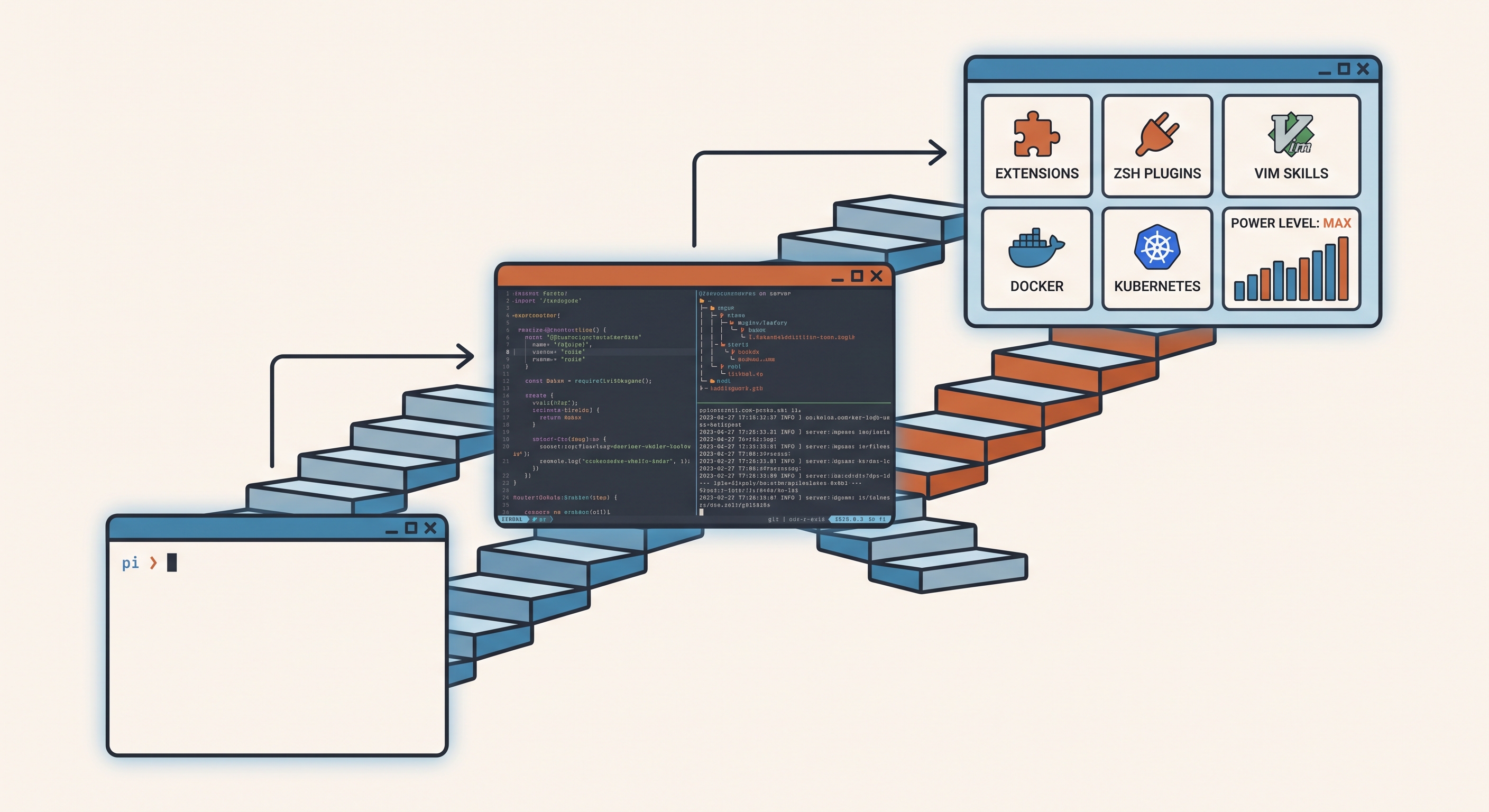
Level 1: Beginner — First steps
Installation
Pi is an npm package. The quickest way:
npm install -g --ignore-scripts @earendil-works/pi-coding-agent
Or with the official installer (Linux/macOS):
curl -fsSL https://pi.dev/install.sh | sh
Windows requires WSL or Git Bash. More details in the documentation.
Authentication
Start pi in your project directory:
cd /path/to/your/project
pi
The first time you'll see the welcome screen. Use /login to choose a provider:
- Subscriptions: Claude Pro/Max, ChatGPT Plus/Pro, or GitHub Copilot.
- API keys: Anthropic, OpenAI, DeepSeek, Groq, Mistral, Google, OpenRouter, Azure, Bedrock...
You can also pass the API key as an environment variable:
export ANTHROPIC_API_KEY=sk-ant-...
pi
Personally, I store all my API keys in Bitwarden and use kitty rbw to load them automatically when opening the terminal. That way keys are available without having to type them by hand every time.
Your first prompt
Inside pi, type something and press Enter:
Summarize this repository and tell me how to run its checks.
By default, pi has four tools: read, write, edit, and bash. With those you can do practically anything.
Context files (AGENTS.md)
Pi loads AGENTS.md or CLAUDE.md at startup. It's how you give global instructions to your agent. Create a file in your project root:
# Project Instructions

- Run `npm run check` after code changes.
- Do not run production migrations locally.
- Keep responses concise.
Pi looks for these files in:
- ~/.pi/agent/AGENTS.md — global instructions
- Walking up from the current directory to the root
- The current directory
After modifying a context file —or installing or changing an extension— run /reload for pi to pick it up without restarting.
Referencing files with @
Use @ in the editor for fuzzy file search:
@README.md "Summarize this"
@src/app.ts @src/app.test.ts "Review these together"
You can also paste images with Ctrl+V.
Level 2: Intermediate — Navigation and productivity
Essential keyboard shortcuts
| Shortcut | Action |
|---|---|
| Ctrl+L | Select model |
| Ctrl+P | Quick cycle between models |
| Shift+Tab | Change thinking level |
| Ctrl+G | Open external editor (VS Code, vim...) |
| Ctrl+V | Paste image into prompt |
Bash from the TUI
Pi runs Bash commands without leaving the interface:
!command— Runs and sends output to the LLM.!!command— Runs locally without sending output to the LLM (useful for silent commands likegit status).
This distinction is very useful: use ! when you want the agent to see a command's output and react, !! for things you only need yourself like git status without adding noise to the context.
!npm run lint
!!git status
The status bar
At the bottom of pi you'll see:
- Current working directory
- Session name
- Token and cache usage
- Accumulated cost
- Context usage percentage
- Active model
Message queue
You can send messages while the agent is working:
- Enter — Queues a steering message (delivered after the current round of tool calls).
- Alt+Enter — Queues a follow-up (delivered after the agent finishes all work).
- Escape — Cancels and restores queued messages to the editor.
Sessions and branching
This is one of pi's most powerful and unique features.
Sessions are automatically saved to ~/.pi/agent/sessions/. You can resume them:
pi -c                  # Continue most recent session
pi -r                  # Browse and select past sessions
pi --session <path|id> # Open a specific session
Inside pi:
/session— Shows current session info (file, ID, tokens, cost)./tree— Navigates the session tree. Jump to any previous point and continue from there, creating an alternative branch without losing previous progress./fork— Creates a new session from a previous user message./clone— Duplicates the active branch into a new session file./compact— Summarize old messages to free context./resume— Browse past sessions./name <name>— Name the session so you can find it later.
Branching with /tree is a feature that sets pi apart from any other closed-source coding agent. You can have multiple exploration lines in the same session file, and if you abandon a branch, pi can automatically summarize it so no context is lost.
Quick model switching
Use Ctrl+P to quickly cycle between models. Configure your selection with --models:
pi --models "claude-*,gpt-4o,deepseek-*"
Or in settings.json:
{
  "defaultProvider": "opencode-go",
  "defaultModel": "deepseek-v4-flash",
  "defaultThinkingLevel": "high"
}
System prompts
You can replace or extend the default system prompt:
~/.pi/agent/SYSTEM.md— Replaces globally..pi/SYSTEM.md— Replaces per project.~/.pi/agent/APPEND_SYSTEM.md— Appends without replacing..pi/APPEND_SYSTEM.md— Appends per project.
Level 3: Advanced — Skills, templates, and extensions
Skills
Skills are Markdown files with frontmatter that inject into the agent's context. They're the simplest way to teach pi reusable behaviors.
I already compared both methods in detail, but to summarize: you can install them with npx skills (my preferred method) or gh skill:
# Install Matt Pocock's skills
npx skills add mattpocock/skills --skill grill-me --skill tdd

# Browse available skills
npx skills find
You can also create your own skills. A skill is a SKILL.md file with frontmatter:
---
name: my-skill
description: An example skill
---

This is my custom skill. When the user invokes it with /skill:my-skill,
this content is injected into the agent's context.
Skills live in ~/.pi/agent/skills/ (global) or .pi/skills/ (project). I already wrote about how to install them.
Prompt templates
These are custom slash commands. Create a Markdown file in .pi/prompts/ or ~/.pi/agent/prompts/:
---
name: review-pr
description: Review a PR and leave comments on GitHub
---

Review this PR and leave inline comments on GitHub using `gh`. Check for:
- Breaking changes
- Missing error handling
- Test coverage
- Consistency with project conventions
After /reload, you can use /review-pr and the content will expand in the editor.
Extensions (pi packages)
Extensions are TypeScript modules that can register tools, intercept events, show custom UI, and much more. This is what sets pi apart from any other agent.
# Install packages
pi install npm:@aliou/pi-linkup       # Web search
pi install npm:@aliou/pi-processes    # Background processes
pi install npm:pi-subagents           # Subagents
pi install npm:pi-lens                # AST search + LSP
pi install npm:pi-slopchop            # Context optimization

# List installed packages
pi list
Extensions are auto-discovered from ~/.pi/agent/extensions/ and .pi/extensions/. You can write your own in TypeScript:
import type { ExtensionAPI } from "@earendil-works/pi-coding-agent";

export default function (pi: ExtensionAPI) {
  pi.registerTool({
    name: "greet",
    description: "Greet someone",
    parameters: Type.Object({
      name: Type.String({ description: "Name to greet" }),
    }),
    async execute(toolCallId, params, signal, onUpdate, ctx) {
      return {
        content: [{ type: "text", text: `Hello, ${params.name}!` }],
      };
    },
  });
}
Compaction
When the context window gets full, you can compact:
- Automatic: Pi compacts when nearing the context limit.
- Manual:
/compact [instructions]to compact with a custom focus. - Extensions:
pi-slopchopcan reduce token usage by up to 98%.
Themes
Pi supports custom themes. I use pi-powerline-footer which customizes the status bar:
pi install npm:pi-powerline-footer
Configure the theme in settings.json:
{
  "powerline": {
    "preset": "default",
    "customItems": [
      { "id": "ci", "statusKey": "ci", "position": "right", "color": "success" }
    ]
  }
}
Level 4: Power user — Total configuration
Custom keybindings
Pi lets you map keyboard shortcuts in keybindings.json:
{
  "ctrl+shift+f": { "type": "files" },
  "alt+o": { "type": "command", "command": "ask-user" }
}
Non-interactive mode
For one-shot prompts from scripts:
pi -p "Summarize this code"
cat README.md | pi -p "Summarize this text"
pi -p @screenshot.png "What's in this image?"
Programmatic modes
--mode json: Structured JSON lines output (ideal for pipelines).--mode rpc: Bidirectional communication over stdin/stdout.- SDK: Embed pi in Node.js applications.
Read-only mode
pi --tools read,grep,find,ls -p "Review the code without modifying it"
My personal setup
This article was written from inside pi, using the exact configuration I describe. My settings.json includes over 20 packages, custom skills, and extensions from my pcaropi repository. I also launch pi from scripts with specific personalities: pi -p @prompt.md "Do X" for repetitive tasks without entering interactive mode.
In the third and final part of this series, I break down all the extensions I use daily, from subagents to productivity skills, web search, agent browsing, and much more.
Source: pi.dev