OpenCode on Your Phone: Remote Sessions with Tailscale and the Web App as a PWA
Posted on Mon, 26 Oct 2026 in Herramientas
When I leave a long session working on my desktop, what I want is to check on it from the sofa. It turns out that doesn't require installing any app on the phone: OpenCode already serves its own web interface from the same server the TUI and the desktop app use. You just have to make the phone able to reach that server.
I set it up with Tailscale and the web app installed as a PWA: no public tunnels and not a single port opened on the router.
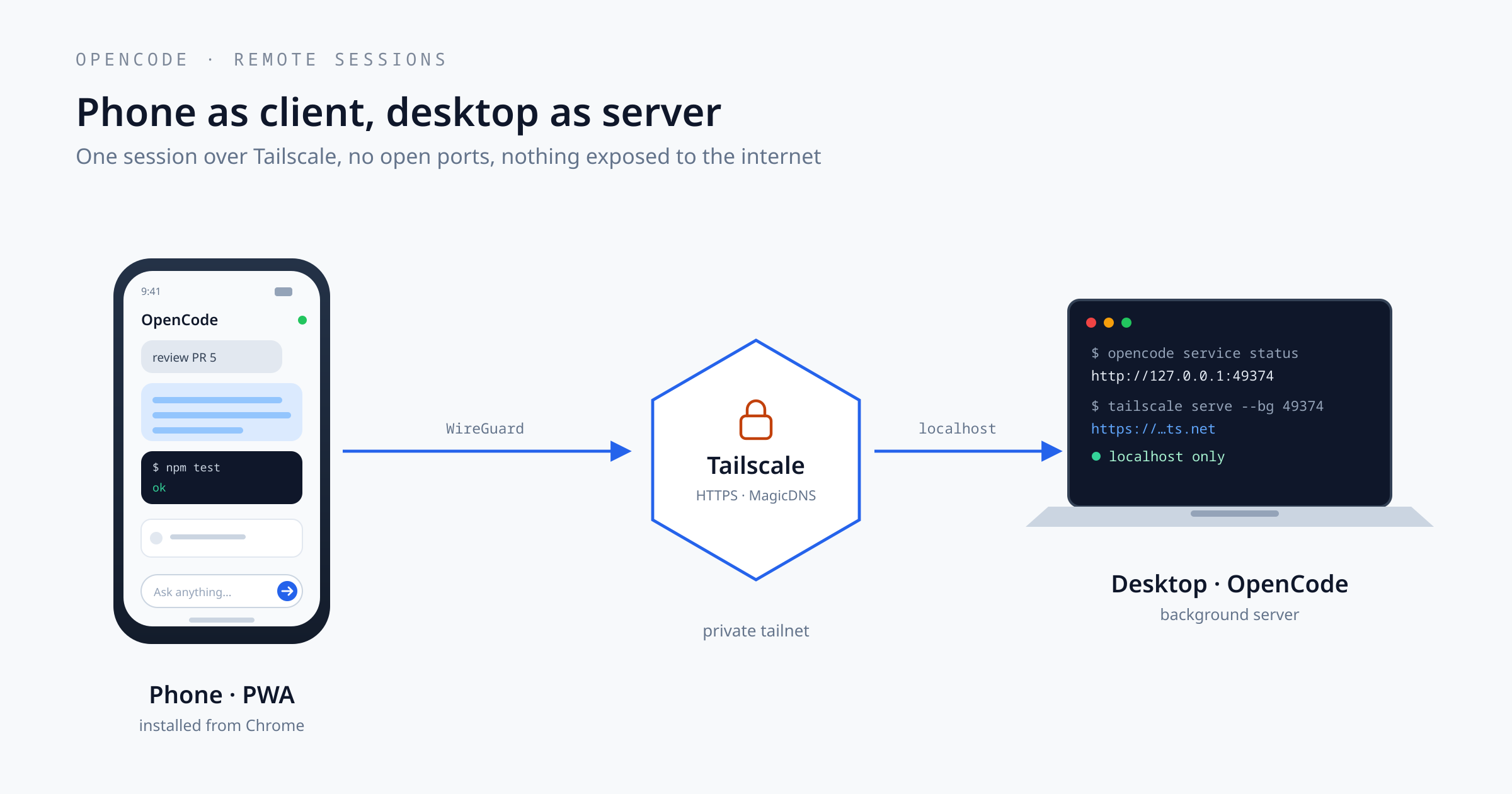
Client and server, that's the whole thing
Since version 2, OpenCode is client/server. There's a background service holding the sessions, the files, the providers and the credentials, and then there are clients that talk to it: the TUI, the desktop app and the web. The desktop app, in fact, starts that same service when you open it.
Which means a "remote session" isn't a separate feature: it's just another client connecting to the server you already have running. You can see it with:
opencode service status
# http://127.0.0.1:49374
The default port depends on the platform: 49374 on macOS, Linux and WSL, and 28894 on Windows (Windows reserves the high ports, and WSL with mirrored networking takes a block too). By default it listens on localhost only and asks for a password, which is generated on first start.
How pairing works by default
The native mechanism is opencode pair. It prints a one-time link and a QR code:
opencode pair

# Open a link to connect. Links work once and expire in 5 minutes.
# http://127.0.0.1:49374/auth/connect/...
Opening that link in a browser signs you in with a cookie and loads the web UI. The session lasts 30 days, and changing the server password revokes all of them. In the desktop app the same thing lives under Settings → Pairing → Pair device, which shows the QR code to scan from another device.
To leave localhost there are two paths, and this is the important decision:
The official path: OpenTunnel. opencode pair --remote brings up an end-to-end encrypted tunnel to a public relay and gives you an HTTPS address reachable from anywhere. The first time it warns that it's about to expose the server to the internet and asks for confirmation. You still need the password, but the server now has a door on the internet. It's exactly what the desktop's Pair device button does: it turns on opencode service set remote true and builds the QR from the tunnel's public URL (to switch it off, opencode service set remote false).
Your own path: your private network. If Tailscale is already on your devices, the phone and the desktop can see each other over a private IP without exposing anything. That's the one I use.
Tailscale instead of OpenTunnel
The piece that makes this comfortable is tailscale serve. It keeps OpenCode listening on localhost and lets Tailscale terminate TLS and publish that port inside the tailnet. First you need MagicDNS and HTTPS Certificates enabled in the Tailscale admin console; without certificates, Serve can't give you HTTPS.
tailscale serve --bg 49374
tailscale serve status
# https://machine.tailxxxx.ts.net
And now you generate the pairing link with the external URL, not with localhost:
opencode pair --url https://machine.tailxxxx.ts.net
That link already carries the right host, so it works both for pasting it on the phone and for scanning the QR. The server keeps listening on 127.0.0.1 only: no need to touch hostname 0.0.0.0 or open ports on your router. To undo it, tailscale serve reset.
One practical detail: since Pair device is already wired to OpenTunnel, using Tailscale means going through the CLI. Leave Remote access off in the settings and use opencode pair --url, which talks to the same background service.
Installing it as a PWA
You open the link in the phone's browser and it just works. To stop it feeling like a tab, Chrome's menu offers Install app (or Add to Home screen). It's not a shortcut: the web interface ships a manifest with display: standalone, 192 and 512 icons, an apple-touch-icon and a Workbox service worker that precaches the application shell. Opening it from the icon gives you no address bar and no tabs.
This is why HTTPS matters. Installing a PWA and using the camera to scan the QR are secure context features: they work on https://machine.tailxxxx.ts.net, while on http://100.x.y.z:49374 the browser only lets you browse. Done this way, the phone gets its own icon, full screen and a camera for the QR.
The service worker caches the shell: lose coverage and the app still opens with no server behind it. There's no magic though, sessions still live on the desktop, so without a network you get an empty shell with no data.
What you can do from the phone
The web app is the same application as the desktop one, not a cut-down version. From the phone I can:
- Watch the conversation live, with reasoning, tools and per-turn diffs.
- Approve or deny permissions, which is 90% of what I need when I'm away.
- Open the integrated terminal, with an on-screen keyboard and the control keys at hand.
- Browse project files, including PDFs and Office documents.
- Switch model, agent and reasoning level.
What I wouldn't expect from it:
- No push notifications. The browser notification only fires while the page is open or hidden; if the system freezes the tab, the SSE stream dies and nothing arrives.
- Typing long prompts on a phone is still punishment, however good dictation is.
- The desktop has to be on and the service alive. Turn it off and there's no session to look at.
Security in four lines
- The server password is still mandatory; Tailscale protects the network, not the application.
- Restrict access in the tailnet with ACLs or Grants to
machine:443for your devices. - Don't enable Funnel. Serve is for your tailnet; Funnel publishes the service to the internet, and then you're back to OpenTunnel but without its end-to-end encryption.
- If you ever get suspicious, change the password with
opencode service set password "...": every 30-day session drops at once.
Alternatives
If you'd rather not set up Serve, ssh -L does the same for a local client:
ssh -L 49374:127.0.0.1:49374 my-server
And inside the tailnet, without certificates, opencode service set hostname 0.0.0.0 plus http://100.x.y.z:49374 also works. Traffic is still encrypted by WireGuard, but since it isn't a secure context you lose PWA installation and the camera. Fine for a one-off; for daily use, Serve is much better.
Wrapping up
OpenCode's remote sessions aren't a separate product, they're a consequence of everything being client/server: the server is already on your desktop, and all you need is a client that can reach it. The web UI it serves is the full app, and with Tailscale Serve you get real HTTPS without exposing anything. It's the cleanest way I've found to follow a session from my phone without installing anything weird.
Source: OpenCode — Web, OpenCode — Commands and Tailscale Serve.